IV. The Technical Aspects
Extracting the Audio
The first task in setting up any radio station is generating a
playlist of songs. For games, that means extracting the audio into
the common currency of MP3. Unfortunately, every game approaches
audio differently. There are three broad classes of
music that all games will fall into: MIDI, digital mixing, and
CD Audio.
-
MIDI
Generally only found in older games. MIDI files are like sheet
music; they only specify what notes and instruments are to be
played back. The difficulty with MIDI is twofold: first, the
quality of the audio will depend on the playback device, and
second, you must capture the playback into a digital file in
order to create a MP3 file out of it. After months of searching
fruitlessly, I was fortunate enough to stumble across a fantastic
utility that addresses both issues: timidity++. There's a nice walkthrough
on how to use it at this site. It's still
an involved process, so consider yourselves warned, but at least
it's possible.
-
CD Audio (redbook)
Your basic CD-audio soundtrack on tracks 2 and higher
of the CD. By far the easiest of the three to extract. The first
thing I do with any game CD is slap it in the old CD player
and see if it plays. If it does, any number of free or commercial
products are available, which can easily "rip" the CD-Audio
tracks to MP3 files. My personal favorite is the now-defunct
AudioCatalyst, but I also hear good
things about MusicMatch Jukebox.
-
Digital Mixing
This is sort of a catch-all term for anything that isn't MIDI,
and isn't CD-Audio. In this case, the developers decided to
take raw audio files and mix them via some proprietary method.
In some ways this is the best of both words; it offers the quality
of CD-audio, with the possibilities of dynamic arrangements
of MIDI. But it's bad news for extraction. There's no good rule
of thumb here on how to proceed; it will vary on a per-game
basis. There are a few freeware tools that you can use to try
a brute force extraction of the audio files, such as GAP.
That's assuming the developers are using semi-standard file
formats. Like I said, no guarantees here. If the game is popular,
it's likely that some hacker has already come up with a way
to extract the audio. For example, there are many extractors
for Unreal's proprietary audio format, UMX.
Setting up the Server
Attempting to set up a radio station on a web server can be an
unnecessarily complex endeavor. There's certainly no shortage of
people trying to convince you to use their proprietary streaming
software, such as Real's RealSystem, Microsoft's Media Server, and
WinAmp's Shoutcast. Some of it is free; some of it costs thousands
of dollars, and it's all complicated.
My philosophy is, when in doubt, keep it simple, stupid. With that
in mind, I decided to forgo all the complicated streaming solutions
and go with the most basic method: serving individual files via
HTTP. We serve playlists for WinAMP and Windows Media Player.
The playlists are simply text files, formatted as specified for
each player, containing hundreds of standard URL links to songs.
Since this is a web-based project, cross-platform portability is
a concern. Fortunately, MP3 files are universally supported on most
platforms, as are the URLs used to serve the files. And WinAMP, at least, has clones such as MacAmp and XMMS (for Linux) that can parse the playlist files.
So we're set on that front.
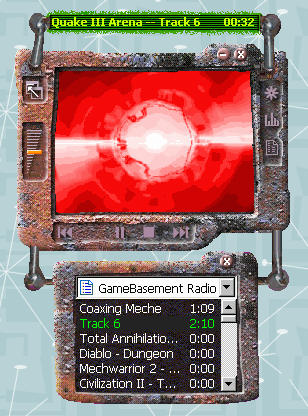
Windows Media Player |
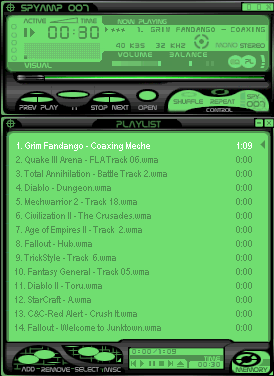
WinAmp |
The other major issue was bandwidth. All the music tracks are standard
128kbps (or higher) MP3 files. These are great for listening to
on your local PC, but not so hot for sending across the internet.
There are two considerations here.
-
Streaming requirements. All modern media players
begin playing the audio files before they are completely downloaded.
For this to work, the encoding rate cannot exceed the bandwidth
of the person listening to the file. In other words, you can't
expect someone on a 56.6 modem downloading at 50kbps
to be able to stream a file encoded at 128kbps.
A bit like pounding a square peg into a round hole, really.
And when that happens, you have to waiting for an entire music
track to download before being able to hear anything. This is
tedious, as you can probably imagine.
-
Bandwidth costs. 128kbps MP3 files are huge—
an average audio track is anywhere from four to five megabytes
in size. That is a hefty download, especially if you have 10
or more listeners at any given time. We aren't running a porn
site here; even if we were living in some kind of ideal world
where every listener has a cable modem or T1 line, I doubt I
could afford to pay for the bandwidth we would be using in that
case.
The solution to both problems is simple: resample the source files
at a lower bitrate. You can resample MP3 files using the freeware
tool, LAME (download binaries
here ). I did a lot of experimentation
and found the ideal bitrate to be 40kbps . Unfortunately,
40kbps MP3 files sound pretty crappy— roughly AM radio quality.
Out of frustration, I experimented with alternate formats that both
Windows Media Player and WinAMP support, in particular WMA
(Windows Media Audio). In side by side listening tests, I found
that WMA offers dramatically improved sound quality at the low bitrate
I had decided on. Quite a surprise! After researching this topic
further, I found many other outside sources that confirmed my results:
Though WMA offers a definite advantage in quality, it suffers from
the predictable disadvantage of being completely Windows-specific.
In order to maintain cross-platform compatibility, I would have
to maintain two sets of files: one with all the songs downsampled
to 40kbps MP3 format via LAME , and one with all the songs downsampled to 40kbps WMA format via
AudioConverter . This essentially
doubles the amount of work for each track, but it's necessary if
we want to serve listeners on non-Windows platforms.
Back to Features
|